
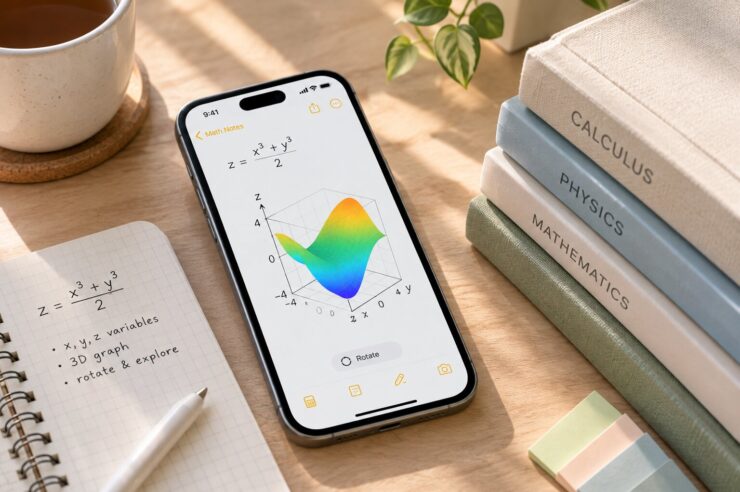
Direct Answer
With Apple Math Notes 3D graphs, you can turn a suitable equation into a surface that you can examine from different angles. The real benefit comes when you save what you learn, too. Keep the equation, your observations, and any follow-up questions together, then use Apple Notes to sort that material by class, topic, or project.

Use Smart Folders as a Dynamic Index
A Smart Folder can collect notes that share a tag or other filter even when those notes live in different subject folders. This is useful for cross-disciplinary projects or recurring review sessions.
Keep the filter rules simple and consistent. A small tag vocabulary is easier to maintain than dozens of near-duplicate labels.
Key Takeaways
- Visualize functions: Use Math Notes in Calculator to explore equations involving (x), (y), and (z).
- Compare what changes: Inspect surfaces from different viewpoints and record differences between functions.
- Make notes easier to revisit: Give each exercise a clear title and include a short explanation of your findings.
- Use Smart Folders thoughtfully: Collect related notes with consistent tags and filters.
- Check exported files: Confirm that equations and graph-related content appear as expected before relying on a Markdown copy.
Create the Graph on Your iPhone
Open Calculator’s Math Notes mode
Launch Calculator and switch to Math Notes using the mode selector. You can start a new math note or open an existing one.
Enter the function
Write or type an equation with (z) on the left and (x) and (y) on the right. Use a function relevant to your lesson or project so you can connect the visualization to what you’re studying.
Insert the 3D surface
Select the equation and look for Insert 3D Graph in the available options. Follow any prompts for assigning variables to axes.
Explore the result
Drag the graph to view the surface from different directions. Try to describe what you see before moving on to another equation. If you plan to compare functions, check which comparison options are available in your version of Math Notes.
Apple’s interface and feature availability can change with software updates. If the steps differ on your iPhone, consult Apple’s current documentation for your device.
Turn Each Graph Into a Useful Study Note
A screenshot or graph by itself may not tell you much a few weeks later. Add a brief record of your thinking while the exercise is still fresh.
A simple entry could include:
Problem: What mathematical question are you investigating?
Function: Which equation did you enter?
Observation: What did you notice as you examined the surface?
Next step: What would you change, calculate, or investigate next?
You can keep these entries short. The point is to preserve the reasoning behind your work, not to turn every graph into a long report.
Make Smart Folders Work for You
Folders are useful for keeping subjects separate, but projects often cross those boundaries. A graph might belong to a calculus assignment and also be part of a research project. Tags and Smart Folders can help you find it from either perspective.
Choose a small set of tags
Start with labels you expect to use regularly, such as #calculus, #3Dgraphs, or #review. Apply the same spelling consistently. If you use several versions of a tag for the same purpose, your notes become harder to collect in one place.
Create Smart Folders around real tasks
Instead of creating a Smart Folder simply because the feature is available, think about when you’ll use it. For example, you might want a view of all notes tagged for exam review or a collection of graphing exercises from several subjects.
Create a Smart Folder in Notes, then select the available filters that match your goal. Matching notes can appear in that view without needing to be moved from their original folders.
Review your system occasionally
As a class or project develops, some tags and folders may stop being useful. Rename or simplify them when needed. A small, consistent system is usually easier to maintain than a complicated one with a separate category for every assignment.
Keep Current Work Separate From Your Archive
Use active folders for assignments and projects you’re working on now. When a course ends or a project is complete, move the material you want to retain into an archive organized by subject, term, or year.
Keep reference notes that you consult frequently easy to access. Older exercises can go into the archive without being deleted, so they remain available if you need to check a previous method or revisit an idea.
Clear titles matter here. “Comparing Two Cubic Functions” is more useful in a long list than “Math Notes 12.”
Export a Copy When You Need It Elsewhere
Apple Notes includes an option to export a note as Markdown. Open the note, choose Share, and look for Export as Markdown. The available options may vary with your software version.
Before using the exported file in another application, open it and inspect the content. Check the equations, images, formatting, and any graph-related information you need. An interactive surface should not be assumed to retain the same behavior outside Math Notes.
Keep the original note if you need to preserve access to the interactive graph or if the exported copy leaves out important material.
Frequently Asked Questions
What are Apple Math Notes 3D graphs?
They are interactive visualizations of suitable equations involving two input variables and a third output variable. You can rotate the surface to inspect its shape.
Is Math Notes part of Apple Notes?
Math Notes is accessed through Calculator. The Notes app serves as a place to organize written material and saved notes with folders, tags, and Smart Folders.
What’s the difference between a folder and a Smart Folder?
A regular folder provides a place to organize notes. A Smart Folder collects notes that meet selected filters, helping you view related material without manually moving every note.
Can I use tags across different subject folders?
Yes. Tags can help connect notes stored in different folders, provided you apply them consistently and use the relevant filters when setting up Smart Folders.
Does Markdown export preserve interactive 3D graphs?
Don’t assume it does. Open the exported file and verify the content you need. Keep the original math note if the interactive graph is important to your work.
What should I do if I can’t create a 3D graph?
Check Apple’s current feature instructions and compatibility information for your device and software version. The available controls may differ between configurations.
The Bottom Line
A good math note should help you understand the problem today and make sense of it when you return later. Use Apple Math Notes 3D graphs to explore functions, write down what you discover, and organize the results with a filing system that suits your studies. Smart Folders can help bring related work together, while a quick export check can prevent surprises when you move notes elsewhere.
For exact instructions and feature availability, consult Apple’s official guides to creating 3D graphs in Math Notes, organizing notes with folders, and exporting notes as Markdown.
You might also like:
- Using Apple’s Live Rewind Audio Intelligence
- Related reading: A practical Apple Notes organization guide; An iPhone backup and setup workflow.