Direct Answer
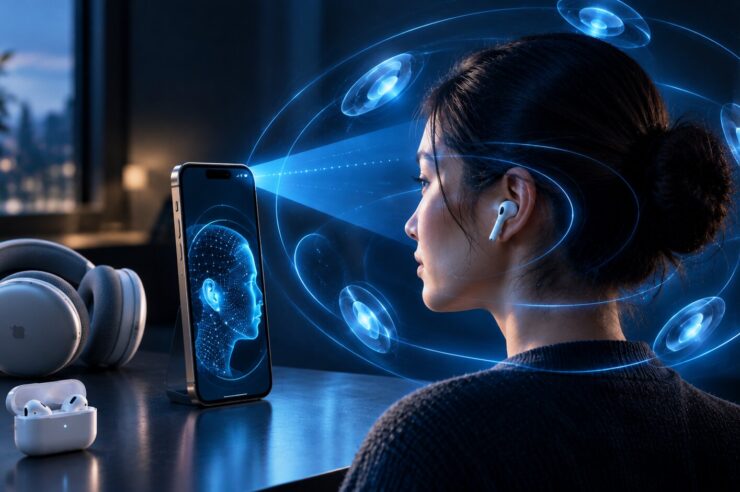
Setting up Personalized Spatial Audio requires pairing your supported AirPods or Beats to an iPhone equipped with a TrueDepth camera, opening your headphone menu in Settings, and following the interactive face and ear scanning prompts. Once created, your customized acoustic profile automatically syncs across all Apple devices connected to your Apple Account.

Choose the Right Listening Mode
Head Tracked anchors the soundstage to the screen, Fixed keeps the immersive mix without reacting to head movement, and Off returns to standard stereo.
Head Tracked can be effective for video, while Fixed may feel steadier for music or listening while moving around.
Personalized Spatial Audio Requirements
To build and use a Personalized Spatial Audio profile, make sure you have the following gear ready:
- An iPhone model featuring a TrueDepth front camera system for feature scanning.
- Supported wireless headphones, such as AirPods Pro, AirPods Max, or compatible Beats models.
- Up-to-date operating software across your connected iPhone, iPad, Mac, or Apple TV devices.
- Audio or video media formatted in Spatial Audio or Dolby Atmos.
Step-by-Step Profile Creation Guide
- Put on your compatible headphones and confirm they are actively connected to your iPhone.
- Open the Settings app on your home screen.
- Tap your connected headphone name near the top of the menu list.
- Locate Personalized Spatial Audio and tap the option to begin setup.
- Hold your iPhone directly in front of your face and complete the front-facing scan as directed.
- Slowly tilt and turn your head to allow the TrueDepth camera to map your right and left ears.
- Finish the guided setup and play a media track to evaluate your new custom profile.
The iPhone gives real-time visual feedback throughout the camera scan, ensuring you capture accurate ear measurements without needing external assistance.
How to Adjust Spatial Audio Preferences
You can switch modes at any point during media playback. Swipe down to open the Control Center on your iPhone or iPad, long-press the Volume slider, and tap the Spatial Audio control icon.
- Head Tracked: Sound direction dynamically shifts as your head turns, keeping dialogue and effects anchored to your device’s screen.
- Fixed: Keeps full 3D spatial separation active while maintaining a static audio field regardless of movement.
- Off: Bypasses spatial rendering completely to deliver traditional left-and-right stereo playback.
Your saved Personalized Spatial Audio profile adjusts the frequency response specifically for your unique ear shape, while these Control Center toggles dictate real-time motion tracking.
What Content Benefits Most From Custom Profiles?
Custom spatial profiles make the biggest impression when viewing movies, streaming television series, or watching video calls rendered in Dolby Atmos. Sound cues feel as though they originate from distinct physical points in the room around you.
With music tracks, performance varies based on how the studio sound engineer mixed the song. Testing various albums helps you decide whether a spatial presentation outperforms standard stereo mixes.
How Head Tracking Alters Your Soundscape
Head tracking is easiest to understand as a relationship between the listener and the screen. When Head Tracked mode is active, voices and effects can appear to remain near the device even as the listener turns away.
That behavior can make a movie feel more like listening to speakers in a room. It can also feel distracting during music, walking, or any situation where the phone is not the visual focus.
Use Head Tracked mode for screen-based content
Movies, television, and video calls provide a clear visual anchor, so the shifting soundstage has an obvious reference point.
Use Fixed mode for steadier music playback
Fixed mode preserves the immersive mix without moving the apparent soundstage as the listener changes position.
Compare the same scene in all three modes
Switch among Head Tracked, Fixed, and Off while replaying a familiar scene. A direct comparison reveals whether Personalized Spatial Audio improves clarity, immersion, or comfort for that listener.
Frequently Asked Questions
Can you enable Personalized Spatial Audio without using an iPhone?
You must use an iPhone equipped with a TrueDepth camera to perform the initial ear and face scan. Once established, your customized profile automatically propagates to your iPad, Mac, or Apple TV via your Apple Account.
Is camera scanning data stored as an accessible photo?
No, Apple processes your facial scan data locally on your device to create an acoustic model, and the setup photos are never saved to your camera roll.
How do you turn off Personalized Spatial Audio?
Access Settings on your iPhone, select your connected headphones, tap Personalized Spatial Audio, and choose the option to stop using your profile. You can re-scan your features whenever you wish.
The Bottom Line
Setting up Personalized Spatial Audio takes under two minutes and provides a noticeably customized listening experience tailored to your head geometry. Complete the camera mapping on your iPhone, then test both Head Tracked and Fixed modes with your favorite movie or track to find your ideal sound setting.
Source: Apple. Read the original article.
Read more:
- How to Master Apple Notes AI Features
- How to Use Apple’s Live Rewind Audio Intelligence?
- Related reading on techypopat.com: Compare podcast apps for iPhone; Follow an iPhone backup and setup guide.