
Direct Answer
Voice commands can make a connected house easier to manage, especially when several people share the same devices. Apple HomeView smart home supports Siri AI requests for compatible accessories, but accurate responses depend on clear device names, consistent room labels, and appropriate permissions. Building a shared vocabulary helps an Apple HomeView smart home respond more predictably to different household members.

Key Takeaways
- Use consistent names for rooms, accessories, and scenes.
- Give similar devices distinct names based on their location or purpose.
- Test Siri requests with different household members.
- Keep security-sensitive commands specific and easy to understand.
- Check accessory compatibility before relying on voice control.
Why Consistent Voice Commands Matter
A voice assistant needs to identify the intended accessory before it can carry out a request. If several devices have similar names, a command may be misunderstood or may affect the wrong part of the house.
For example, naming multiple accessories simply “Light” makes it harder to distinguish them. Names such as “kitchen pendant” and “bedroom lamp” provide clearer references.
This becomes especially important when different people use the same display. A shared naming system gives everyone a common way to request actions without having to remember another person’s preferred terminology.
Create a Shared Naming System
Start with the room names used throughout Apple Home. Keep them short and consistent, then give each accessory a name that identifies its function or location.
A practical naming approach includes:
- Rooms: Use familiar labels such as kitchen, bedroom, and living room.
- Lights: Identify the fixture or area, such as kitchen pendant or reading lamp.
- Climate: Use a clear room reference when more than one thermostat is connected.
- Blinds: Distinguish accessories by room or window location.
- Scenes: Choose names based on the intended result, such as “movie time” or “leave home.”
Avoid names that sound alike when spoken. Test them aloud before settling on a naming convention.
Set Up Apple HomeView for Shared Use
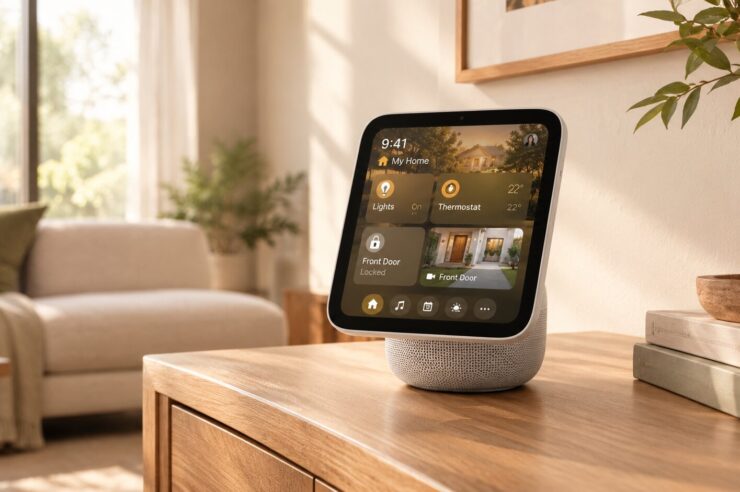
HomeView can serve as a common control point for compatible Apple Home and Matter accessories. It supports a touchscreen and Siri AI, while personalized home screens allow up to six recognized household members to access their own display experiences.
Choose a tabletop model for a shared kitchen or living area, or consider a wall-mounted model near an entryway. Add compatible accessories through Apple Home and assign them to the correct rooms.
A Wi-Fi connection alone does not guarantee compatibility. Check whether each product supports Apple Home or Matter before adding it to the household setup.
Personal-context requests may require a registered Apple Intelligence-enabled iPhone or iPad on the same home Wi-Fi network, recently unlocked, and running supported software and languages.
Test Siri Commands With Everyone
Once accessories have clear names, test the same requests with different household members. People may speak at different speeds or use slightly different phrasing, so a command that works for one person should not automatically be assumed to work for everyone.
Try requests such as:
- “Turn off the living room lights.”
- “Adjust the thermostat to 24 degrees.”
- “Close the kitchen blinds.”
- “Lock the front door.”
- “Show me the camera feeds.”
If Siri does not identify the intended accessory, check its assigned name, room, configuration, and permissions. Touchscreen controls remain useful when a voice request is unclear or unavailable.
Siri’s actual capabilities depend on the accessory and its configuration. Do not assume every multi-step or security-sensitive action can be completed through one voice command.
Keep Security Commands Specific
Convenience and security commands should not be treated the same way. A request to switch off a lamp has different consequences from one that locks a door or changes access to a camera.
Use direct language for important actions. Make sure household members understand what a scene does before using it, particularly when it includes locks or other security-related accessories.
Review who can access the home, which devices can provide personal context, and what permissions are available to each household member.
Use the Display for More Than Voice Control
Voice requests are only one way to interact with HomeView. The touchscreen can operate compatible lights, thermostats, locks, and blinds, while the Home Modular face can make favorite accessories easier to reach.
The Home Camera face can display up to nine compatible video feeds. With supported cameras and an eligible iCloud+ subscription, certain features may provide encrypted recognition for people, familiar faces, pets, packages, and vehicles.
HomeView also supports different display experiences:
- Photos: Shows images from a selected shared album.
- Flow: Displays interactive artwork that responds to presence and movement.
- Snoopy: Presents animations related to time, weather, and occasions.
- Widgets: Surface information from apps such as Calendar, Messages, and Reminders.
These options let household members use the same display for smart-home controls and everyday information.
Is Apple HomeView Private?
Apple says Siri requests can be processed on the device or through Private Cloud Compute, where request data is not stored or made accessible to Apple or others. Some compatible camera-recognition features are described as end-to-end encrypted.
Personalized screens help separate individual information, but household access still needs attention. Review account permissions, camera settings, and which accessories can be controlled by each person.
For the official feature list, compatibility details, and availability information, see Apple’s HomeView announcement in the Apple Newsroom.
Frequently Asked Questions
Can HomeView control accessories from other brands?
Yes, if the products support Apple Home or Matter. Check the exact model and any required bridge before purchasing.
How many people can use HomeView?
It can recognize up to six people and provide personalized home screens. Some personal-context features require a compatible registered iPhone or iPad.
Can Siri AI control connected lights and locks?
It can handle supported accessory requests, subject to product compatibility, configuration, and permissions.
Can HomeView display multiple security cameras?
Yes. The Home Camera face can show up to nine compatible video feeds simultaneously.
When is Apple HomeView expected to be available?
Apple announced HomeView in October 2026, with availability scheduled to begin November 13. Regional availability may vary.
The Bottom Line
A shared voice-control system works best when everyone uses familiar, consistent names for rooms, devices, and scenes. With compatible accessories, clear permissions, and commands tested across household members, an Apple HomeView smart home can make everyday controls easier to understand and use.
Also worth checking out:
- How to Use 3D Graphs in Apple Math Notes and Organize Your Notes
- How to Use Apple’s Live Rewind Audio Intelligence?
- How Do You Smoothly Switch to a New iPhone 18?
- Related reading on techypopat.com: Quick device connection setup; Permission checks before granting AI access.